Published
- 3 min read
Auto Tag EBS Volumes by using EventBridge and Lambda

This is a follow up on my previous post called: Tagging EBS Volumes by Using the Attached Instance Tags.
Snippet from previous post
Tags on AWS is very useful. It can be used for billing, identifying resources and filtering etc.
When you are creating EBS volumes manually on AWS and then attaching them to EC2 instances, you may notice that any existing tags added to the instances, these tags are not reflected on the volumes itself.
This can get very messy in environments where tags are often an after thought.
What’s new
In the original script (see my previous post), you must pass in a text file that contains a list of volume ids to tag and then execute the Python script manually.
With this new deployment, it is fully automated! Any time you attach an EBS volume to an instance, it will trigger a Lambda function which will then tag the volume by using the attached instance tags.
How it works
In a high level, this is what happens:
-
EBS volume is attached to an instance
-
CloudTrail will capture this event
-
CloudWatch/EventBridge will trigger the Lambda function as per the configured event pattern (EC2 AttachVolume event)
-
Lambda knows the instance id and volume id.
-
Lambda looks at the existing instance tags
-
Lambda tags the EBS volume by using the instance tags. If EBS contains the same key tag as the instance, then it will be overwritten by the instance tag value.
-
You can find the source code here on my GitHub repository.
See this in action
We first start by creating a new EBS volume.
       $ aws ec2 create-volume --availability-zone ap-southeast-2a --size 1 --tag-specifications 'ResourceType=volume,Tags=[{Key=Name,Value=EmptyVolume},{Key=Purpose,Value=Testing}]'
{
    "AvailabilityZone": "ap-southeast-2a",
    "CreateTime": "2022-01-31T04:06:17+00:00",
    "Encrypted": false,
    "Size": 1,
    "SnapshotId": "",
    "State": "creating",
    "VolumeId": "vol-09cfbf053f18d11e4",
    "Iops": 100,
    "Tags": [
        {
            "Key": "Name",
            "Value": "EmptyVolume"
        },
        {
            "Key": "Purpose",
            "Value": "Testing"
        }
    ],
    "VolumeType": "gp2",
    "MultiAttachEnabled": false
}
Attach the volume to an instance.
       $ aws ec2 attach-volume --device /dev/sdf --instance-id i-0a674f4xxx --volume-id vol-09cfbf053f18d11e4
{
    "AttachTime": "2022-01-31T04:09:16.506000+00:00",
    "Device": "/dev/sdf",
    "InstanceId": "i-0a674f4xxx ",
    "State": "attaching",
    "VolumeId": "vol-09cfbf053f18d11e4"
}
Verify that Lambda function has been executed automatically.
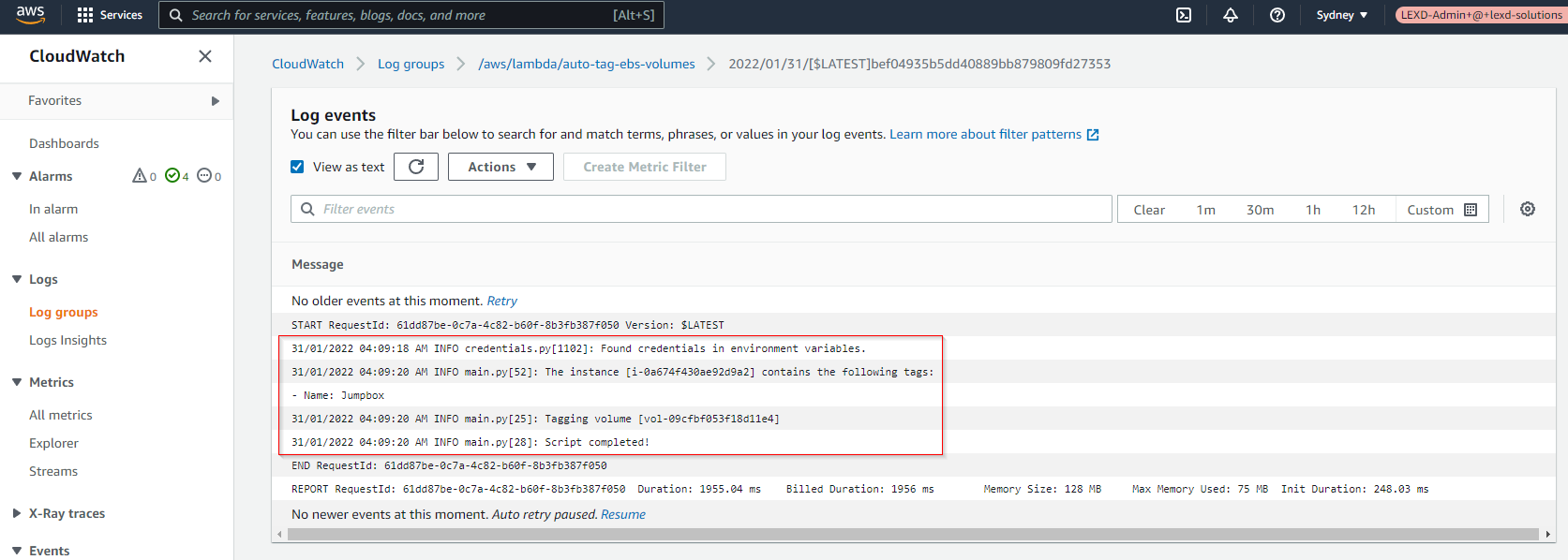
Verify that the volume is now tagged using the instance tags.
Note: As mentioned above, if the volume tag contains the same key tag as the instance, the value will be overwritten. In this example, the name is changed from “EmptyVolume” to “Jumpbox”
       $ aws ec2 describe-volumes --volume-ids vol-09cfbf053f18d11e4 | jq '.Volumes[].Tags'
[
  {
    "Key": "Name",
    "Value": "Jumpbox"
  },
  {
    "Key": "Purpose",
    "Value": "Testing"
  }
]
How to deploy this
Ensure CloudTrail logging is enabled on your AWS account
Clone my GitHub repository
Modify the main.tf and values.tf to match the configuration of your AWS environment.
Then deploy the stack via Terraform.
       $ terraform init
$ terraform plan
$ terraform applyNote: The Lambda code itself is stored on my S3 bucket. I am using GitHub Actions to automatically package this artefact and upload to S3 for me. You can zip the ./src/main.py manually and upload to S3.
Final thoughts
The easiest way to deploy this is by using the Terraform template provided. If you have any issues deploying it, feel free to leave a comment below and I’ll do my best to help.
Thanks again for making it this far into my blog!