Published
- 3 min read
Customizing Bash Prompt (PS1) to show AWS Credential Expiration
This post is a continuation from my previous post on “AWS – How to Assume Role using Python”.
Recap on my previous post
Previously I’ve written my own Python script to assume role into AWS and the new set of credential is saved to the ”~/.aws/credential” file.
Example on how I assume role:
       $ assume-role --cred-file ~/cred.yml --roles-file ~/roles.yml --profile prodaccount
===================================
AWS Assume Role Script by Alex Dinh
===================================
Choose a role to assume into:
  [0] Exit
> [1] My Admin Role (My-Admin@12345)
  [2] My NonAdmin Role (My-NonAdmin@56789)
Enter MFA token code for [ arn:aws:iam::12345:user/myusername ]: 123456
Assuming role to: arn:aws:iam::12345:role/My-Admin
Successfully assumed role!
Updating /home/alex/.aws/credentials file...
Your new AWS credentials will now work with awscli. e.g.
$ aws ec2 describe-instances --profile prodaccount
Assume role do not last forever and it has an expiration. To view the expiration, the script has a —expiry option.
Example:
       $ assume-role --profile prodaccount --expiry
===================================
AWS Assume Role Script by Alex Dinh
===================================
The AWS profile prodaccount has 59 minutes remaining
The problem
Although I can check the AWS profile expiration by manually calling the script, sometimes when I only have a few minutes remaining and I am executing a “terraform apply”, it can cause Terraform to hang.
The solution
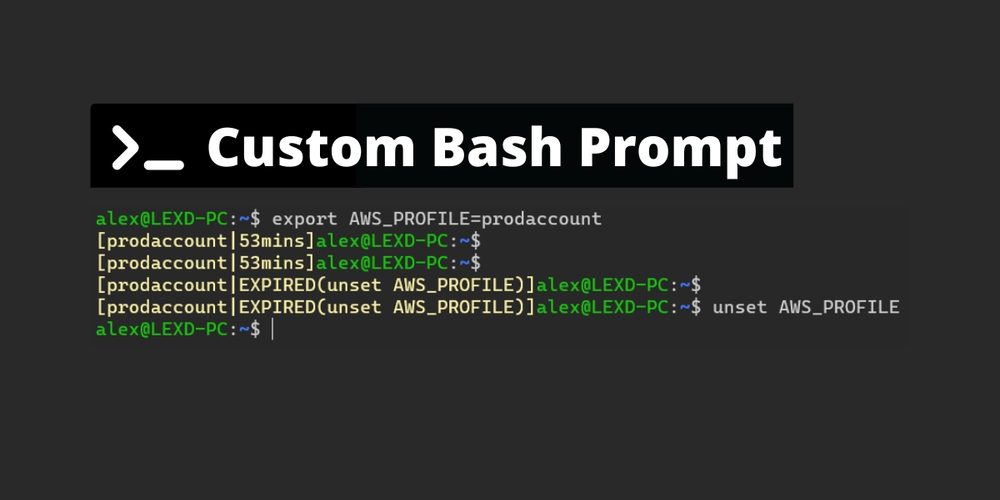
Thanks to Bash in allowing me to customize the prompt, now I can include the time remaining to show up directly on my terminal without having to run the script each time.
Example:

How it works
This works by getting ”~/.bashrc” file to source my custom script which you can find on my GitHub repository.
The script uses a small Python script that reads the ~/.aws/credential file for the credential expiration and then outputs it as a simple string to my $PS1 variable.
Here is what the script contains on my GitHub (I do recommend to use GitHub’s version as the source of truth)
       read_aws_credential_file() {
    python3 <<EOL
from datetime import datetime
import os, configparser
credentials_file = f"{os.getenv('HOME')}/.aws/credentials"
config = configparser.ConfigParser()
config.read(credentials_file)
expiration = config[os.getenv("AWS_PROFILE")]['expiration']
expiration_datetime = datetime.fromtimestamp(float(expiration))
# Time remaining in minutes
time_remaining = int((expiration_datetime - datetime.now()).total_seconds()/60)
print(time_remaining)
EOL
}

role_expiration() {
    if [[ ! -z $AWS_PROFILE ]]; then
        time_remaining=$(read_aws_credential_file)
        if [[ ${time_remaining} > 0 ]]; then
            echo "[${AWS_PROFILE}|${time_remaining}mins]"
        else
            echo "[${AWS_PROFILE}|EXPIRED(unset AWS_PROFILE)]"
        fi
    fi
}

# Prepend AWS profile expiry info into existing bash prompt
export PS1="\e[1;33m\`role_expiration\`\e[m${PS1}"
Conclusion
The beauty of this is that if you “unset” the AWS_PROFILE variable, the script will not try to call the Python script at all!
I personally have not experienced any performance impact by this script but only made my productivity a lot higher.