Published
- 6 min read
How TTL and DNS Cache Works

I am sure by now most IT professionals would’ve used the famous “ipconfig /flushdns” command in one point in their career, however do you actually know how DNS cache works?
Time To Live (TTL)
What allows DNS cache to work is the TTL (Time to Live). TTL is configured on DNS records and this tells a DNS server how long to cache a certain record for.
By having the ability to adjust the TTL is very important, here are some benefits:
- A high TTL can reduce the amount of DNS query made against a DNS server (less load on the DNS servers and reduces network traffic).
- A high TTL can improve connection time by not having to make a DNS query for each and every request.
- A low TTL can allow for failover by using DNS. However this is generally not recommended as the DNS record needs to be updated manually during a failover and the TTL period may impact the application connectivity.
Interesting Fact about AWS RDS
On AWS, when you configure High Availability by enabling Multi-AZ, Amazon actually uses a low TTL DNS record to provide a failover to the standby DB instance. This is the reason why is recommend to use the RDS provided FQDN when connecting to the RDS instance. Example snippet from the AWS documentation:
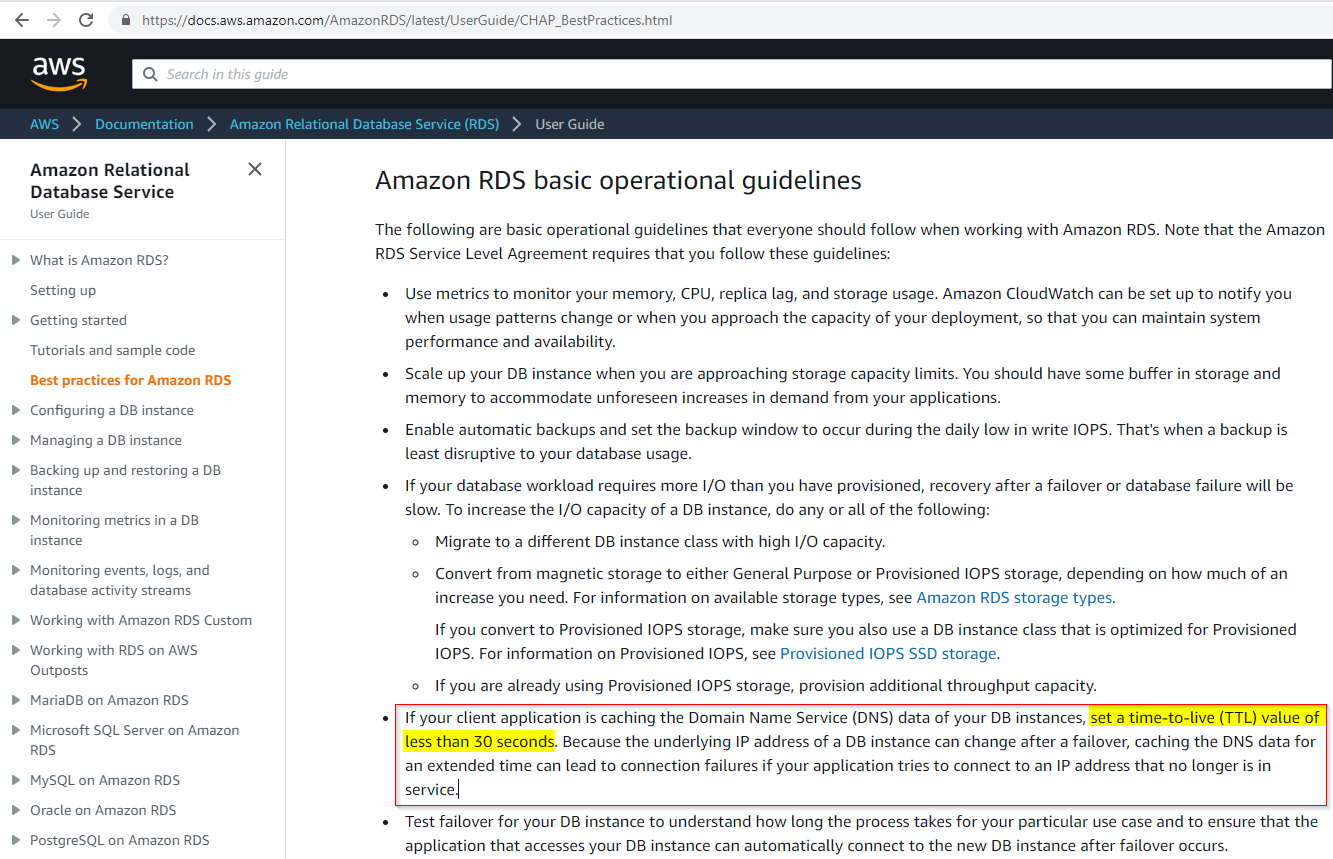
Ref: https://docs.aws.amazon.com/AmazonRDS/latest/UserGuide/CHAP\_BestPractices.html
RDS is able to use a low TTL for failover here is because the DNS record is updated automatically by AWS when a failover occurs and their DNS backend is capable of handling a large number of DNS queries.
Where TTL is Set
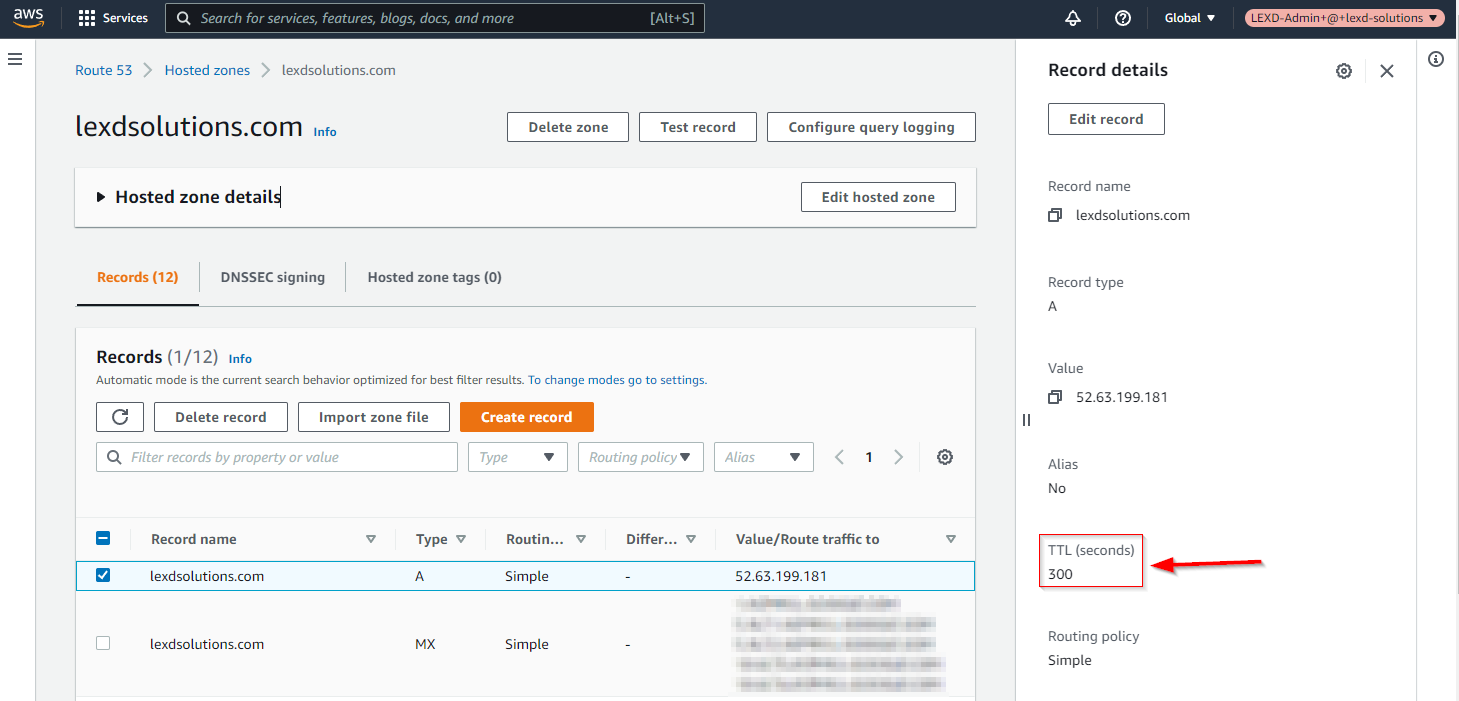
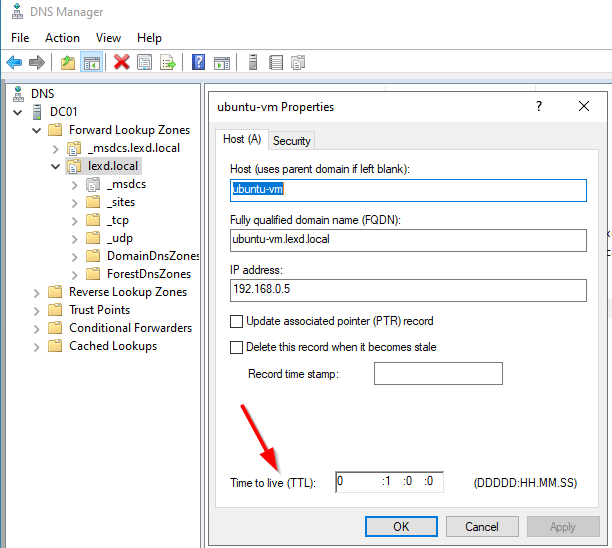
TTL is configured for each DNS record. Here are 2 examples, one on AWS Route53 and one in AD DNS.
AWS Route 53
AD DNS
Checking and Clearing the DNS Cache
Now this is where people are the most familiar with running “ipconfig /flushdns”, but not many people know that caching is not only done on the client but also on the DNS server itself. This is the main reason why the flushdns command may appear to work intermittently (or I can say you may have gotten lucky because the TTL expired on the DNS server after a few flushdns retries).
From here I will talk about how DNS cache works on Windows. Linux systems can also use cache but it various between different distro’s and the type of service being used.
How to Check DNS Cache on a Windows Client
Using the A record “lexdsolutions.com” that is configured on AWS Route53 in the above. I have set the record with TTL of 300 seconds. Using the PowerShell cmdlet, you can see how I can check the current DNS cache by checking the TTL remaining.
First flush the DNS cache and then attempt to ping the server
       # Flush DNS
PS C:\> ipconfig /flushdns

Windows IP Configuration

Successfully flushed the DNS Resolver Cache.

# Attempt ping so client will perform a DNS lookup query
PS C:\> ping lexdsolutions.com

Pinging lexdsolutions.com [52.63.199.181] with 32 bytes of data:
Request timed out.

Ping statistics for 52.63.199.181:
    Packets: Sent = 1, Received = 0, Lost = 1 (100% loss),
Control-C
Show the DNS cache. Here you can see the TTL changing as time goes on.
       PS C:\> date; Get-DnsClientCache | fl

Thursday, 10 March 2022 8:50:25 PM

Entry      : lexdsolutions.com
RecordName : lexdsolutions.com
RecordType : A
Status     : Success
Section    : Answer
TimeToLive : 298   <=============
DataLength : 4
Data       : 52.63.199.181


PS C:\> date; Get-DnsClientCache | fl

Thursday, 10 March 2022 8:50:39 PM

Entry      : lexdsolutions.com
RecordName : lexdsolutions.com
RecordType : A
Status     : Success
Section    : Answer
TimeToLive : 284   <=============
DataLength : 4
Data       : 52.63.199.181
How to Check DNS Cache on a Windows DNS Server
As mentioned earlier, cache doesn’t just apply to the client machines, records are also cached on the Windows DNS servers. By using the “Show-DnsServerCache” cmdlet, you can list the DNS cached records.
Example:
       PS C:\> Show-DnsServerCache -ComputerName dc01.lexd.local

HostName                  RecordType Type       Timestamp            TimeToLive      RecordData
-------- ---------- ---- --------- ---------- ----------
apple.com                 A          1          0                    00:09:32        17.253.144.10
google.com                A          1          0                    00:04:04        142.250.204.14
localhost                 A          1          0                    17089.07:56:55  127.0.0.1
...
Here is another example how “ipconfig /flushdns” on a client machine doesn’t affect the server DNS cache.
       ##########################
# First flush client cache
PS C:\> ipconfig /flushdns

Windows IP Configuration

Successfully flushed the DNS Resolver Cache.


########################################################
# Attempt ping so client will perform a DNS lookup query
PS C:\> ping lexdsolutions.com

Pinging lexdsolutions.com [52.63.199.181] with 32 bytes of data:
Request timed out.

Ping statistics for 52.63.199.181:
    Packets: Sent = 1, Received = 0, Lost = 1 (100% loss),
Control-C


########################################
# Show that the client has the DNS cache
PS C:\> date; Get-DnsClientCache | fl

Thursday, 10 March 2022 9:08:06 PM

Entry      : lexdsolutions.com
RecordName : lexdsolutions.com
RecordType : A
Status     : Success
Section    : Answer
TimeToLive : 285
DataLength : 4
Data       : 52.63.199.181


########################
# Flush the client cache
PS C:\> ipconfig /flushdns

Windows IP Configuration

Successfully flushed the DNS Resolver Cache.


#######################################################
# Confirm that client cache is now empty after the flush
PS C:\> date; Get-DnsClientCache | fl

Thursday, 10 March 2022 9:08:15 PM


#####################################
# Show the cache on the AD DNS Server
PS C:\> Show-DnsServerCache -ComputerName dc01.lexd.local | where {$_.Hostname -like "lexd*"}

HostName                  RecordType Type       Timestamp            TimeToLive      RecordData
-------- ---------- ---- --------- ---------- ----------
lexdsolutions.com         A          1          0                    00:04:28        52.63.199.181
How to Clear DNS Cache on Windows DNS Server
There is separate cmdlet called “Clear-DnsServerCache” to clear the DNS cache on a Windows DNS server.
Example: here you can see that we can no longer see the record cache after it has been cleared.
       PS C:\> Show-DnsServerCache -ComputerName dc01.lexd.local | where {$_.Hostname -like "lexd*"}

HostName                  RecordType Type       Timestamp            TimeToLive      RecordData
-------- ---------- ---- --------- ---------- ----------
lexdsolutions.com         A          1          0                    00:04:28        52.63.199.181


PS C:\> Clear-DnsServerCache -ComputerName dc01.lexd.local -Force
PS C:\> Show-DnsServerCache -ComputerName dc01.lexd.local | where {$_.Hostname -like "lexd*"}
PS C:\>
Conclusion
Throughout my IT career I have seen many people run “ipconfig /flushdns” and they don’t understand why DNS isn’t getting updated.
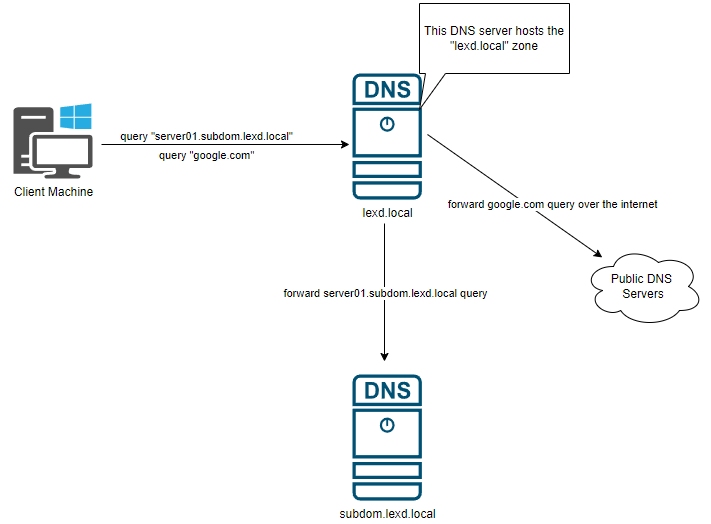
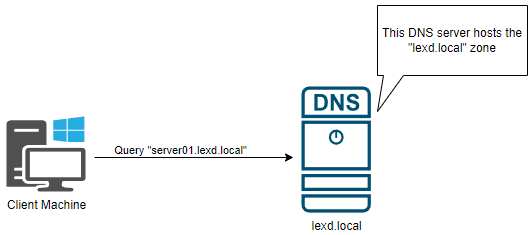
If you look back at the default TTL on AD DNS, you can see that the default TTL is 1 hour. If your client machine is pointing directly to that DNS server which is hosting that DNS zone, then the only cache will be on your client machine. However if the DNS server is required to forward the DNS query externally (e.g. default forwarder or conditional forwarders etc), then the DNS server will cache that response for the TTL duration.
Here are some examples with diagrams:
Client Cache only
Here only the client will store the cache for “server01.lexd.local”
Client and Server both caches the result
As the DNS server needs to forward the query, both the “lexd.local” DNS server and the client will cache the result.