Published
- 6 min read
VS Code with DeepSeek R1 on AMD Radeon RX 6700 XT
Introduction
By now I am sure most people would have heard of DeepSeek and their R1 model which rivals ChatGPT and other large language models (LLMs).
Unlike any other current LLMs, DeepSeek is open source (or some say “open weights”) and its capability can compete with the current top LLM models.
Since discovering about DeepSeek, I was hesitent on using their web version, but I then found out that we can actually run their models locally so I was very keen to give it a try and also use it as an AI assistant in VS Code!
After some research, I found that Nvidia GPUs are generally better for LLMs and AMDs not so much. Furthermore my current GPU (AMD Radeon RX 6700 XT) is not supported by Ollama which is the software that runs the LLM.
With some more research, I finally got it working, so keep reading to find out how I did it!
DeepSeek R1 Models
It is worth noting that I am using the “distilled model” and not the full version as the one DeekSeek provides through their website.
A distrilled model is a light weight version of the original. You can think of the original model as the “teacher” and the distilled model as the “student”.
Furthermore, the distilled models have different number of parameters to choose from. Generally the large the parameter the “smarter” the model is. However this would also require a more powerful GPU and more VRAM required to run these models.
Using Ollama, there are these available options (b = billion):
- 1.5b
- 7b
- 8b
- 14b
- 32b
- 70b
- 671b
There are other options if you check out all their available tags.
I’ve used this guide to give me a rough idea on which model to use. Based on my GPU, I have 12GB of VRAM so I have opted for the 14b model.
Setup
Prerequisites
Make sure of the following before continuing:
- Windows 11 (this is what I am currently using, just want to make it clear)
- Updated my GPU driver to the latest
- Install the AMD Software: Adrenalin Edition 25.1.1 Optional Update
Ollama Install
Ollama is an open-source framework for running LLMs on local environments.
The official Ollama supported GPUs list does not contain my GPU and for this reason I cannot use the official website to download the install.
Instead, there is a fork called ollama-for-amd and this is what I used. Go to the releases and download the latest version of OllamaSetup.exe.
Run the install.
Check AMD for LLVM target
The instructions from the “ollama-for-amd” repo, contains a link to: https://rocm.docs.amd.com/projects/install-on-windows/en/develop/reference/system-requirements.html
This page shows what the LLVM target to use, depending on the model of the GPU.
For example, my AMD Radeon RX 6700 XT uses gfx1031
Download ROCm Library
Using the information from the above, I now need to download a specific ROCm library for my GPU.
Using this GitHub repo I have downloaded rocm.gfx1031.for.hip.sdk.6.1.2.7z
Patch ollama-for-amd
Extract the ROCm library files as follow (replace file and folder - make a backup first if required):
- rocblas.dll ->
%USERPROFILE%\appdata\local\programs\Ollama\lib\ollama - The
libraryfolder ->%USERPROFILE%\AppData\Local\Programs\Ollama\lib\ollama\rocblas\
Restart the computer
Running DeepSeek using Ollama
First I have pull down the DeepSeek model to my machine
       PS> ollama pull deepseek-r1:14b

PS> ollama list
NAME               ID              SIZE      MODIFIED
deepseek-r1:14b    ea35dfe18182    9.0 GB    2 hours ago
Running the model
PS> ollama run deepseek-r1:14bConfirm its using all of my GPU
       PS> ollama ps
NAME               ID              SIZE     PROCESSOR    UNTIL
deepseek-r1:14b    ea35dfe18182    11 GB    100% GPU     4 minutes from now
Example prompt
       >>> what colour is a red ball?
<think>
Okay, so I need to figure out what color a red ball is. Hmm, that seems pretty straightforward, but let me think it through step by step.

First off, when someone refers to a "red ball," they're likely talking about an object that's spherical in shape and has the color red. Red is one of the primary colors,
right? So, if I have a ball that's described as red, its color is simply red. But maybe there's more to it.

Wait, could the question be trying to trick me somehow? Like, maybe it's asking about something else hidden in the name "red ball"? For example, sometimes things can have
double meanings or puns. Let's consider that possibility.

A "ball" can also refer to a type of event, like a party or social gathering. So, if someone says a "red ball," could they mean a red-themed party? But in that case, the
color would still be red as the theme. Unless there's another layer I'm missing here.

Alternatively, maybe it's about the appearance of the ball itself. If it's a red ball, its color is obviously red. There might not be any trick or hidden meaning; perhaps
the question is just straightforward.

I should also consider if "red" could mean something else in different contexts. For instance, in some games or sports, "red" could have specific meanings, like a certain
team's color or a warning card. But again, without more context, it's hard to say.

In most cases, though, when someone refers to a red ball, they're simply talking about an object that is the color red. So, unless there's additional context suggesting
otherwise, the answer would just be red.

Maybe I should break it down further: what defines the color of an object? The light it reflects. Red balls reflect red light and absorb other colors in the spectrum. But
the question isn't asking about physics; it's a simple color identification.

So, putting it all together, without any complicating factors or hidden meanings, a red ball is simply the color red.
</think>

The color of a red ball is **red**.
Connecting from VS Code
Ollama by default allows you to access the API through localhost:11434, but since I am primarily using WSLv2 with my VS Code, I had to do one additional step by setting the OLLAMA_HOST.
To allow my VS Code (WSLv2) to connect to Ollama running on the host machine, I have use the following command to start the model
       PS> $env:OLLAMA_HOST = "192.168.x.y:11434"
PS> ollama run deepseek-r1:14b
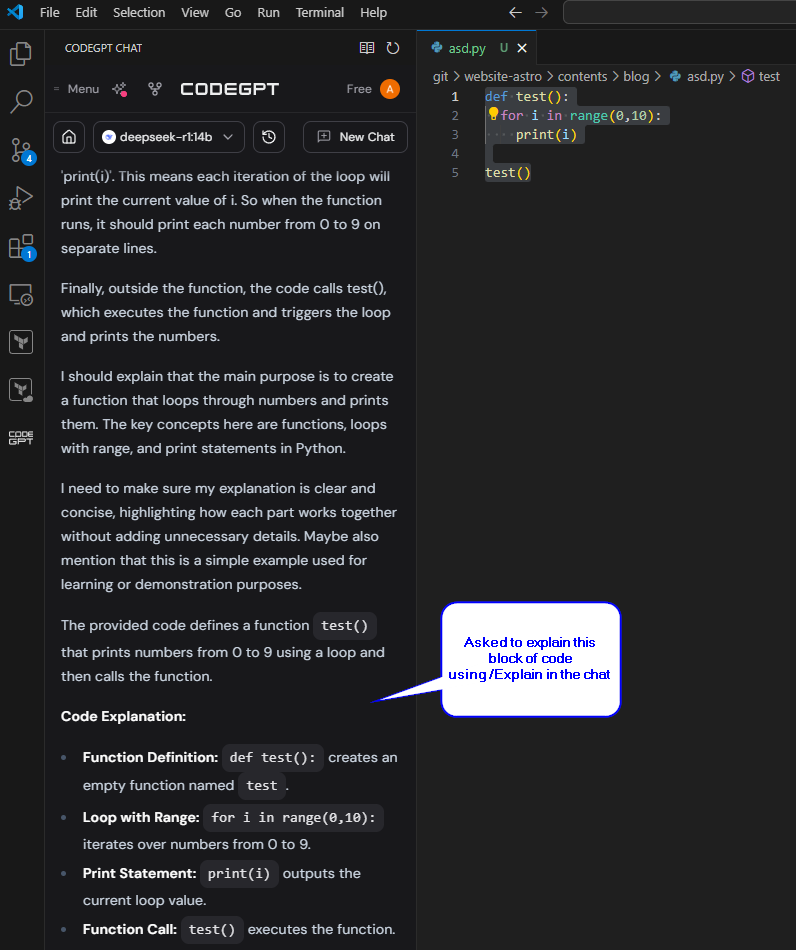
In VS Code, installed the extension called CodeGPT, then:
- Configure the extension to use Local LLM
- Select Ollama
- Connect to Ollama using custom link: http://192.168.x.y:11434
Example Configuration

Here is what CodeGPT looks like when I am using it in VS Code
Conclusion
I am very happy with the outcome. No need to spend any money for an AI assistant in my VS Code and most importantly, its all running locally on my machine!
I hope you find this useful and I look forward to writing my next post soon!